Writing · Nameplate · 9 min read
Which project is this window?
Every VS Code window looks the same, which is how a command ends up in the wrong terminal. Nameplate gives each project a name and a color of its own in the status bar, keeps the colors of open windows apart, and keeps them out of Git.
Open a few projects in VS Code and you get a few windows that look exactly alike: the same theme, the same layout, the same panels. The only sign of which project a window belongs to is the folder name in the title bar, in small grey text, and after a few quick switches nobody reads it any more. That's how a migration runs in the wrong terminal, a commit goes to the wrong repository, or ten minutes go into editing a second clone of a project while you wonder why nothing changes.
Nameplate is a free extension I built for exactly that. It puts the project's name at the left end of the status bar and gives every project a status bar color of its own. A color is recognised before anything is read, even on a window in the background, and the name beside it says what the color stands for. It runs in VS Code and in the editors built on it: Cursor, Windsurf, Antigravity, Kiro, Positron and VSCodium.
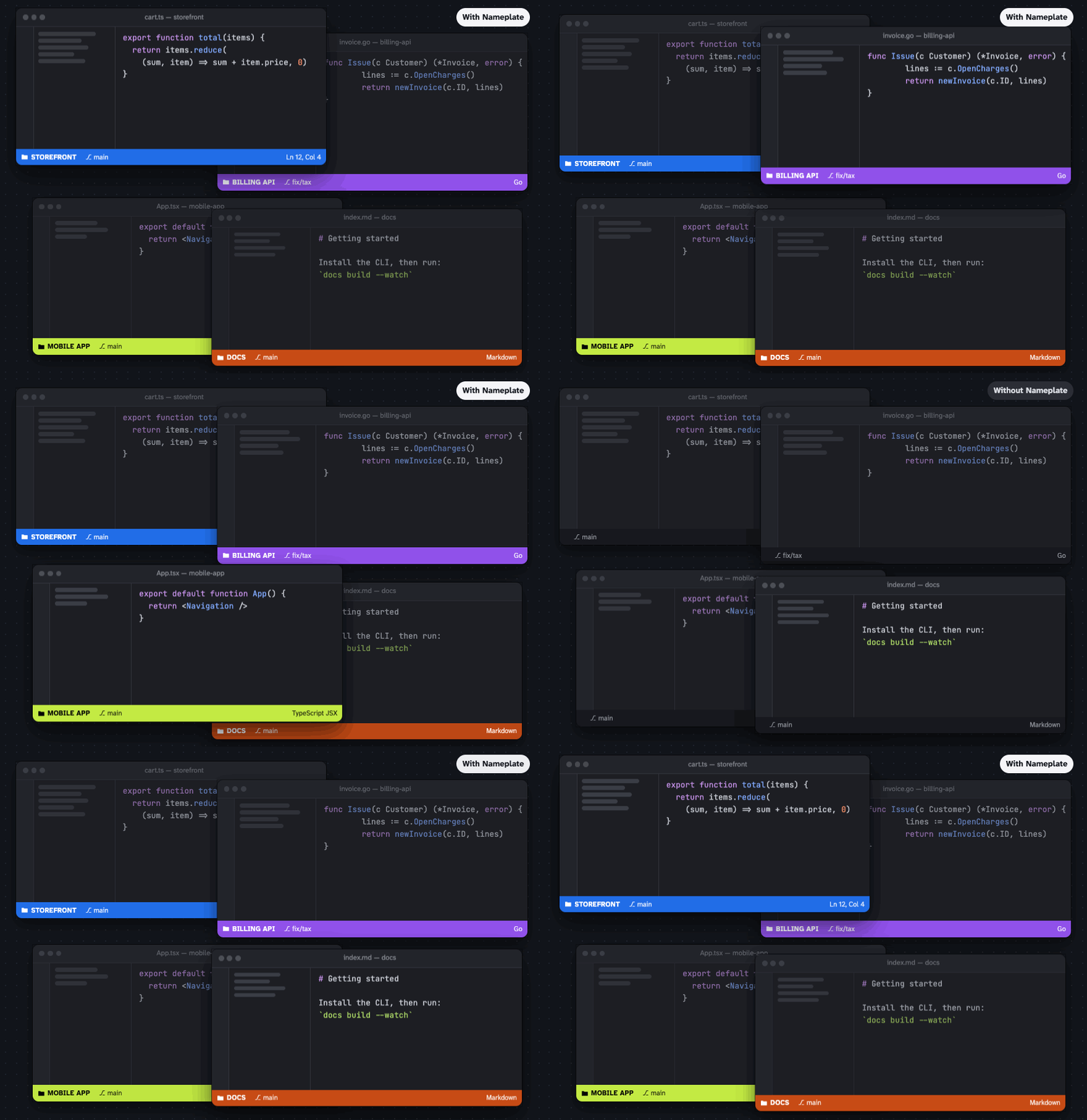
That's the whole idea, and there's nothing to set up: install it, and every open window shows a name and a color. What takes some care is making "nothing to set up" true. The name has to be found rather than asked for. The color has to stay the same every day and stay different from the other windows. And the colors have to live in a file that many teams commit, without ever appearing in a commit.
1A name worth reading
The obvious name is the folder's, and usually it's right. But folders are often called app, src, frontend or tmp.x1, which says nothing about which project this is. So Nameplate keeps a list of generic names, and when the folder's is one of them it looks further: a product name in Expo's app.json, a displayName in package.json, a package name in package.json, pyproject.toml, Cargo.toml, go.mod and a few others, and finally the repository's name from its Git remote. A generic folder inside a repository gets both names, so a monorepo's frontend folder shows up as the repository's frontend.
Casing gets the same attention. If any source spells the name with deliberate capitals, that spelling wins; plain lowercase names are shown in capitals with spaces between the words, which is what reads best on a status bar.
| The project | Shown as | Because |
|---|---|---|
a folder called storefront | STOREFRONT | the folder name means something |
a folder called app, whose package.json has "displayName": "Billing API" | Billing API | app is generic; the manifest isn't |
a folder called frontend inside the repository brightdesk, with nothing else to go on | BRIGHTDESK FRONTEND | a generic folder inside a repository |
a folder called brightdesk, cloned from github.com/acme/BrightDesk | BrightDesk | the remote spells it with capitals |
2A color that stays put
A color only helps if it's the same every time, so it can't be random, and it can't depend on which window happened to open first. Nameplate derives it from the project's Git remote. The remote is normalised first, so that an SSH clone and an HTTPS clone of the same repository both come out as github.com/acme/brightdesk, and that string is hashed. The hash seeds a shuffle of the palette, and the first color in the shuffled order is the project's color, on this laptop and on every other machine. A project without a remote uses its folder's path instead, and a monorepo's sub-folder or a linked worktree gets a key of its own, because each opens as a window of its own.
The palette is eleven colors, chosen in OKLCH, a color space built around how people see, so that no two of them look alike: the closest pair, green and teal, are still 0.14 apart in OKLab terms. Red and yellow are left out of the automatic set, because a red or yellow status bar looks like an error or a warning. The text on each color is white, unless white would be hard to read, in which case it's black, and every pairing clears the 4.5:1 contrast that WCAG asks of normal text.
- Blue#216de8
- Indigo#4132b9
- Purple#9051eb
- Magenta#9212a4
- Pink#c63a86
- Orange#c74b15
- Lime#c3ea43
- Green#0c6427
- Teal#158280
- Cyan#50dee9
- Ocean#0a557d
3Two windows, one color
Eleven colors aren't many, and a hash on its own will happily give two open projects the same one. It happens more often than intuition says. With eleven colors, five projects picked at random share at least one color about two times in three: it's the birthday problem. A color that two windows share is worse than no color at all, because it's trusted.
So the shuffled order is a preference, not a verdict. Each window walks down its own order until it finds a color that looks clearly different from every window open right now, and then keeps it. "Looks different" is measured the way people see it, as a distance in OKLab rather than a difference between hex codes, so two shades that differ only on paper count as the same color.
The hard case turned out to be windows that start together, right after the extension is installed or when VS Code restores a session. The first version kept its record of which window had which color in VS Code's global state. But every window keeps its own copy of that state, VS Code syncs the copies only after a delay, and each window writes the whole thing back, so windows that started together each saw an empty record, picked the same color, and quietly overwrote each other's notes. Version 0.1.1 moved the record into a small file in the extension's storage folder, which a window may change only while it holds a lock file. Now the windows take turns: each one reads what the others have claimed, picks a free color, and writes it down before the next one looks.
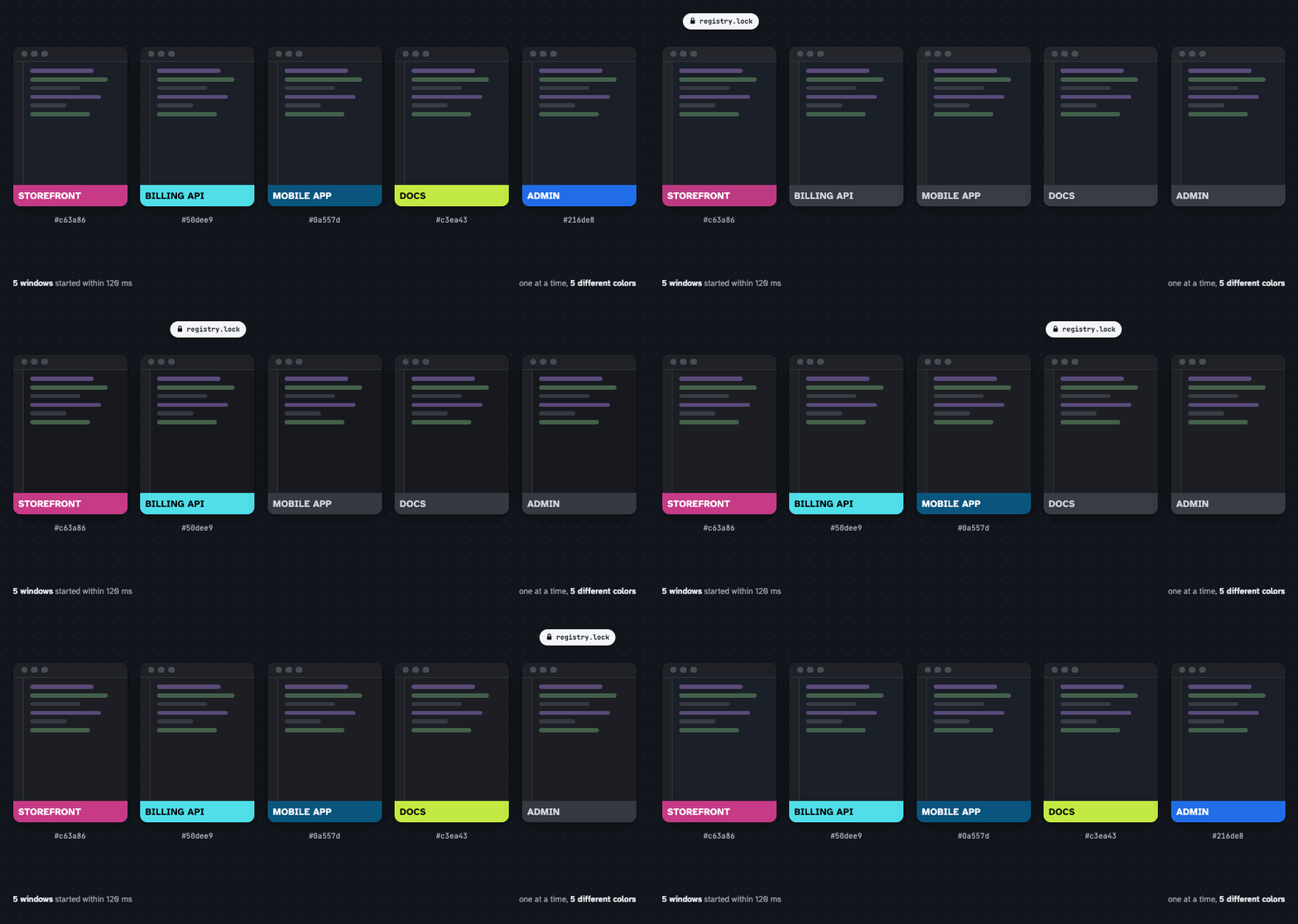
Knowing which windows are still open needs no heartbeat. Every VS Code window runs its own extension host process, so the file records the process ID beside each claim, and a claim whose process has gone belongs to a window that has closed. If two open windows ever do end up alike, the one that got the color later moves to a free one and says so in its status bar. A test checks exactly this: it opens six windows of a separate copy of VS Code on projects whose first-choice colors are all the same, installs the extension while they're open, and fails if any two of them end up looking alike.
4Colors that never reach a commit
VS Code has exactly one way to color a single window: the project's workspace settings, which usually means .vscode/settings.json. Plenty of teams commit that file, and a status bar color is a personal preference that has no business in anyone's diff. Nameplate writes three keys there:
"workbench.colorCustomizations": {
  "statusBar.background": "#158280",
  "statusBar.foreground": "#ffffff",
  "statusBar.inactiveBackground": "#158280"
}
The third matters more than it looks. VS Code's default themes give an unfocused window a status bar color of their own, so without that key the project color would vanish whenever the window isn't focused, which is exactly when you glance at it to see which project it is.
Then it makes sure Git never sees them. If the settings file didn't exist, Nameplate creates it and lists it in .git/info/exclude, Git's local list of files to ignore, which is never committed. If the file is committed, Nameplate installs a Git clean filter for it, in .git/config and .git/info/attributes, which are local too. Git runs a clean filter whenever it reads a file from the working tree, and this one takes Nameplate's lines out on the way in. git status stays clean, the colors never reach a commit, and your own edits to the file show up as usual. The filter runs on the copy of Node that ships inside VS Code, so there's nothing to install, and on any error it hands Git the file untouched, so it can never break Git.
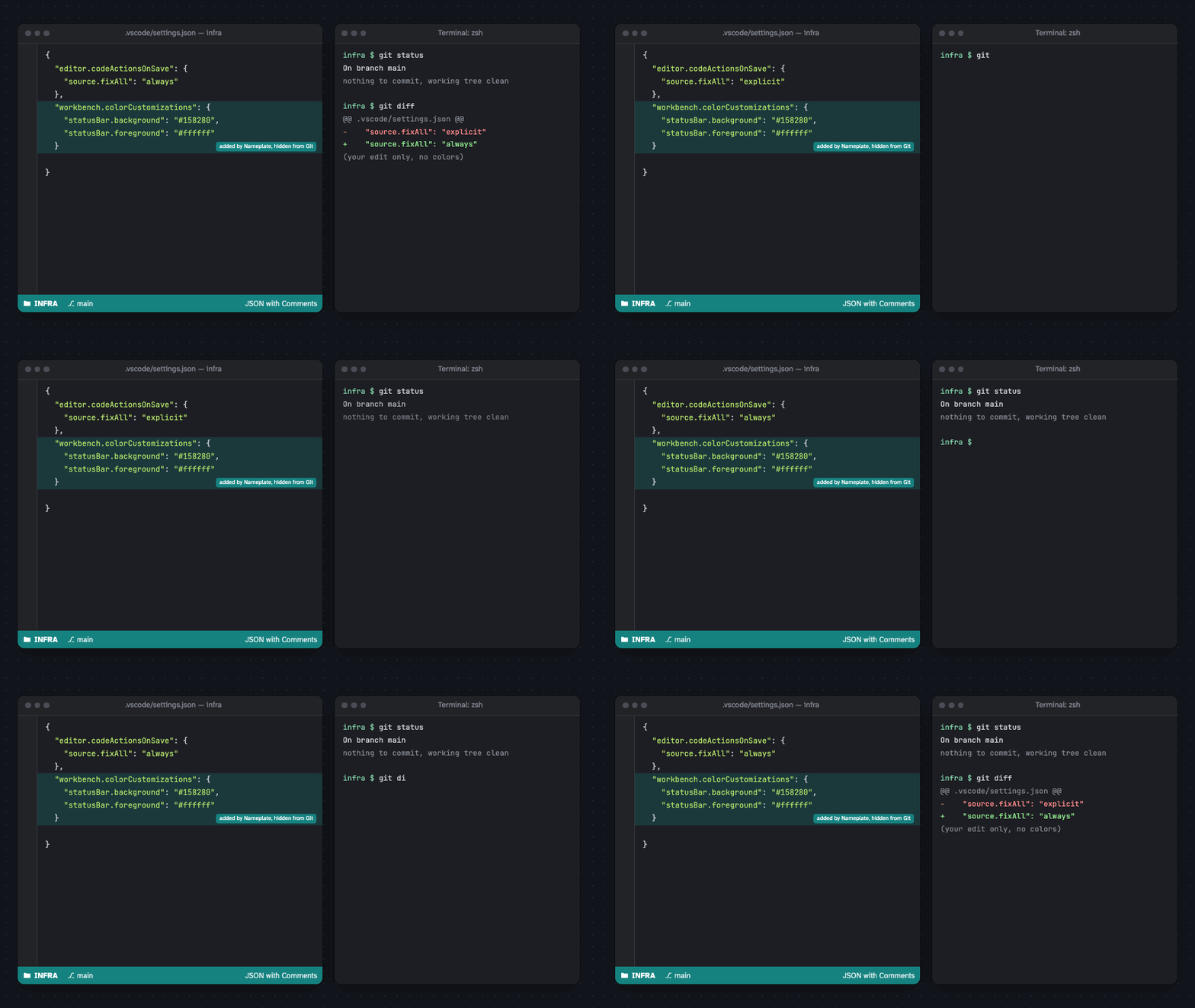
git status is clean and git diff shows only your own edit.One detail is easy to miss. Git doesn't run filters on every git status: it trusts the size and timestamp it cached last time, and a file whose size has changed is reported as modified without being filtered at all. Adding three lines changes the size. So after each write, Nameplate asks git diff --quiet, which does run the filter, whether anything really changed, and only if nothing did, it refreshes Git's cache for that one file with git add -u. That stages nothing new, because the filtered file is already what the repository holds.
5A good neighbour
Nameplate only ever touches its own keys. Before writing one, it remembers the value that was there, and turning coloring off puts that value back. If a key is already set, by you or by another extension such as Peacock, it leaves the window alone and says why in the tooltip, and it replaces the value only when you pick a color yourself, keeping a copy to restore later. It makes no network requests and collects nothing.
Clicking the name opens a menu to rename the project, choose a color with a live preview, add a label such as PROD, copy the path or the remote, or open the repository in the browser. Most people will never need it, and that's the point.
6Get it
Nameplate is free and open source under the MIT licence. VS Code installs it from the Visual Studio Marketplace; Cursor, Windsurf, Antigravity, Kiro, Positron and VSCodium install it from Open VSX; and any editor built on VS Code 1.85 or later can install the .vsix from the GitHub releases. The code is on GitHub, and the product page shows the rest.